

How To Set Up the Nissan Mobile App | NissanConnect®
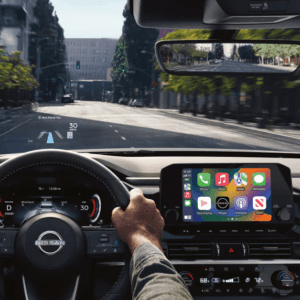
The MyNISSAN app is essential to getting the most out of your Nissan, giving you access to NissanConnect features such as remote start, remote lock and unlock, vehicle health reports, and GPS-based tracking. It’s easy to use and lets you control your Nissan from anywhere with an internet connection. Read as our team in San Angelo, Texas, shares the steps for setting up the app.
Preparing To Download the Nissan Mobile App
Ensure your Nissan is compatible with the app before downloading it. Most models from 2014 and newer support NissanConnect, but specific features can vary by trim and year. You can find the details in your owner’s manual or on Nissan’s official website. If you’re ready to buy a newer Nissan to ensure you have the latest technology, see how much you can get for your car and apply it toward your new vehicle.
Step-By-Step Guide to Downloading and Installing
Once you’ve confirmed that your car is compatible, here’s the fastest way to get the MyNISSAN app up and running:
- Download the app from the Apple Store (iOS) or Google Play Store (Android).
- Register your account with your details, your Nissan’s vehicle identification number, or VIN, and a valid email address.
- Accept the terms of service.
Now that the app is ready, follow the steps below:
- Go to your Nissan’s touch screen and click on Settings.
- Select Users, then Add User, and enter your login information.
- After selecting Set Up Profile, name your profile.
- Accept the terms and services agreement to continue.
- On the screen’s top right corner, choose NissanConnect Login.
- Fill in your login information and password and wait.
- If successful, you’ll receive an alert to say your vehicle is connected.
Connecting to Google
Congratulations. You’ve completed the first step. You should see a green tick next to the first option on the screen. Beneath that, you’ll see an option to set up your Google account, which offers the best benefits and personalization from the app. Log in using your existing Google email and password. If you don’t already have an email account, you can create one. Then, follow the steps below:
- Select Set Up Google Assistant and Apps.
- Sign in to your Google account with your login details or scan the QR code with your phone.
- You should see a message that says, “You’re signed in.”
- Select Next and Done for Now.
Setting up Your Phone
You should now see two green ticks to the right of the screen. The last setting is to connect your phone. Follow the steps below:
- Select Settings on the home screen.
- Choose Connections, then Add New.
- Turn on Bluetooth on your phone and look for Pair New Device.
- Search for your car. For example, My Armada or My Titan (this will be shared on your vehicle’s screen).
- Confirm the PIN on your vehicle’s screen and press Pair.
- You should see your phone listed as Connected on your vehicle screen.
Configuring Essential Features
Once you’re connected, you can use the mobile app for several vehicle functions, including the following:
- Remote Start/Stop: Cool or heat your car before you get inside.
- Vehicle Locator: Use GPS to find your car in a busy parking lot.
- Remote Lock/Unlock: Lock or unlock your car from anywhere.
- Vehicle Health Reports: Stay on top of maintenance and set alerts and updates.
- Boundary, Speed, and Curfew Alerts: This tool is especially handy for parents with teen drivers.
NissanConnect also lets you send navigation directions from your phone to your car’s infotainment system, so you’re ready to go as soon as you start the engine.
Troubleshooting Common Issues
If you run into problems, try the following fixes:
- Update the app: Old or outdated versions can cause glitches, so always ensure you have the latest version.
- Clear the cache: On iOS, head to Settings > General > iPhone Storage, select the app, and clear the cache.
- Reinstall the app: Delete and reinstall the app from the App Store or Google Play.
- Check your connection: Make sure your phone and car are online and paired correctly.
You can also contact NissanConnect support using the app or by visiting Jim Bass Nissan. Our experts can show you how to use NissanConnect.
Optimizing Your Experience
NissanConnect isn’t only about convenience; it’s about smarter access. More drivers use these features daily, and Nissan is constantly improving the app based on real feedback. New Nissan models often come with up to three years of complimentary services, so you can test features, such as the vehicle locator, without paying extra. If buying a used Nissan, look for models with NissanConnect services. When you’re ready to finance your next vehicle, you can apply for financing straight from your phone.
Your Nissan, Smarter and More Connected
From remote controls to real-time alerts, NissanConnect makes even the shortest drives more convenient. You can set up the MyNISSAN app in just a few minutes, but the benefits last for years. With over two million app downloads and high satisfaction rates, it’s clear that Nissan drivers value this technology. Give it a try and see how connected your drive can be. For more tips or to reset the system, check the app’s support section or visit Jim Bass Nissan in San Angelo.

0 comment(s) so far on How To Set Up the Nissan Mobile App | NissanConnect®